
 Not Connected to Google Drive
- Create permalinks easily by browing your Google Drive files and folders. Just click the button below to connect.
-
Play Phrasle!
I created a game inspired by Wordle and Wheel of Fortune called Phrasle. Please give it a try, and tell a friend!
FAQ
-
What's up with the all the ads?!
I know ads are annoying, but servers are expensive, so it's just an attempt to get some help paying the bills from the loyal gdURL users who appreciate the service. (In all honesty, the ads you see here haven't even generated enough revenue to earn a single payout from Google.) You could also help by donating.Update: I removed all the ads and instead ask that you please play my game: Phrasle
You can also still donate, if you are so inclined and generous :-)
Thanks for your support and appreciation!
-
Can I see an example?
Sure! Here's a public Google Drive file URL you can play with. Click to insert it into the form above:
https://docs.google.com/file/d/0By7D4SJX3kYEdVo1bDdSb0hHWlk/edit?usp=sharing
-
Do you track views?
Yes! You are provided multiple versions of your permalink. For each method, we track every time the link is used by anyone.
-
What else can you do for me?
In addition to a direct link to any file and the ability to display any image on a web page (in an <IMG> tag), you are also provided special codes that you can use to embed supported file types (such as .PDF and even .ZIP) in a fancy file viewer on any web page.
-
Will an HTML page work?
Not anymore. As of March 3, 2015, HTML files are no longer acceptable due to filthy scumbag spammers using them maliciously. They always have to ruin the party for everybody.
-
How do I find a file's public URL in Google Drive?
The simplest way to create permalinks is to browse your Google Drive files and folders by connecting to your account above. The old-fashioned method is to copy the URL from Google Drive and pasting it. To do that, follow these four simple steps to access a file's public URL in your Google Drive folders:
-
Right-click on the desired file.
In the pop-up menu hover over Share... and click Share... in the sub-menu.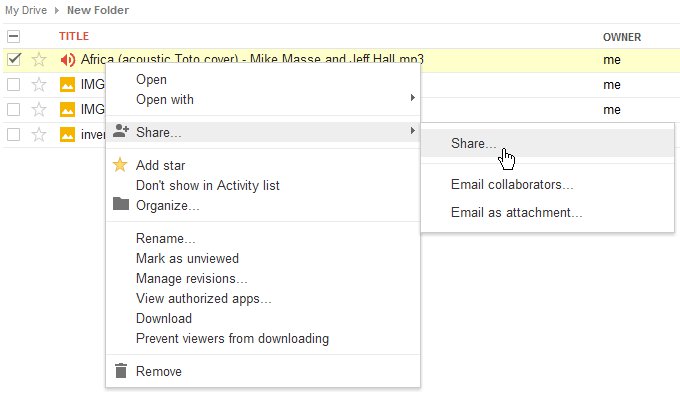
-
The Sharing settings form appears.
Click Change... in the Who has access section.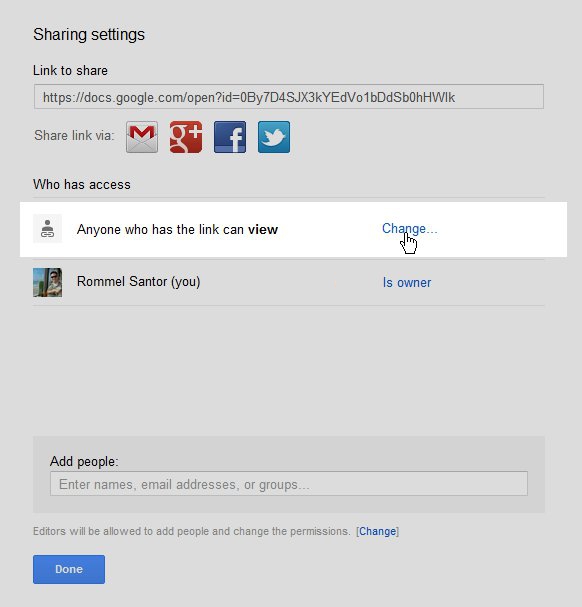
-
The Visibility options form appears.
Select the Public on the web option and click the Save button.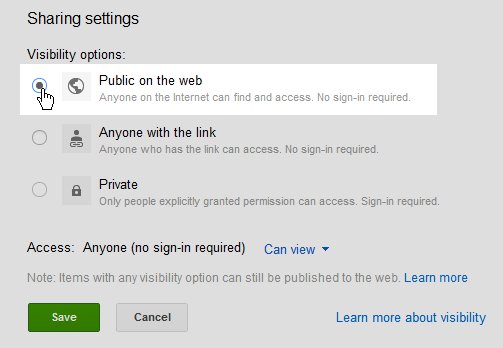
-
You are returned to the Sharing settings form.
Copy the Link to share URL to your clipboard and paste it here at gdURL.com. That's it!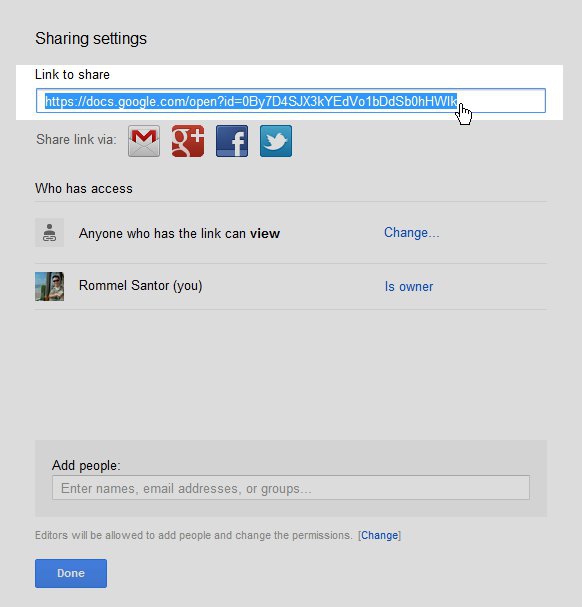
-
-
Are executable files allowed?
Sorry, not any longer. They used to be permitted because it was assumed that Google would not allow its users to submit viruses to the Drive service, however some malicious users have proven that to be an incorrect assumption. Thus, executable applications are no longer accepted by gdURL.com.
-
Can I link to a folder?
Sorry, that's not supported. You can only create a permalink for individual files and not folders.
-
Is copyright-protected content allowed?
Please refer to our DMCA Take-Down Policy page. In short, no. Any valid DMCA take-down request will result in the offending link being deleted.
-
I created an image link. Why won't it load?
If your image is very large in size (the exact minimum is unclear), Google cannot scan it for viruses, and when you open the file via a web browser, Drive will display a page with a warning message instead of the actual image itself.
In short, this means you can't directly load an image stored at Google Drive if it's too large. :-(
-
Are there any potential disadvantages?
The only real problem with sharing links at Google Drive files in general (whether via gdURL or directly from Drive) is that Google limits the amount of traffic to your files. Once too much bandwidth or too many views have occurred for a file, Google will stop allowing people to load it temporarily.
-
Do you offer any guarantees?
Especially as a free public service, there are no guarantees explicit or implied with the availability of this website or any links that have ever been created with it. This is especially important because Google could at any time cause things to break.
In fact, after 8 years of providing this service, in January 2020 Google started blocking the manner in which we determined if files still existed, causing us to mark countless files as "deleted in Google Drive." As a result, we are no longer able to determine if files are deleted or have become private in Google Drive, so links to any such files will just land visitors at some kind of Google error page henceforth.